
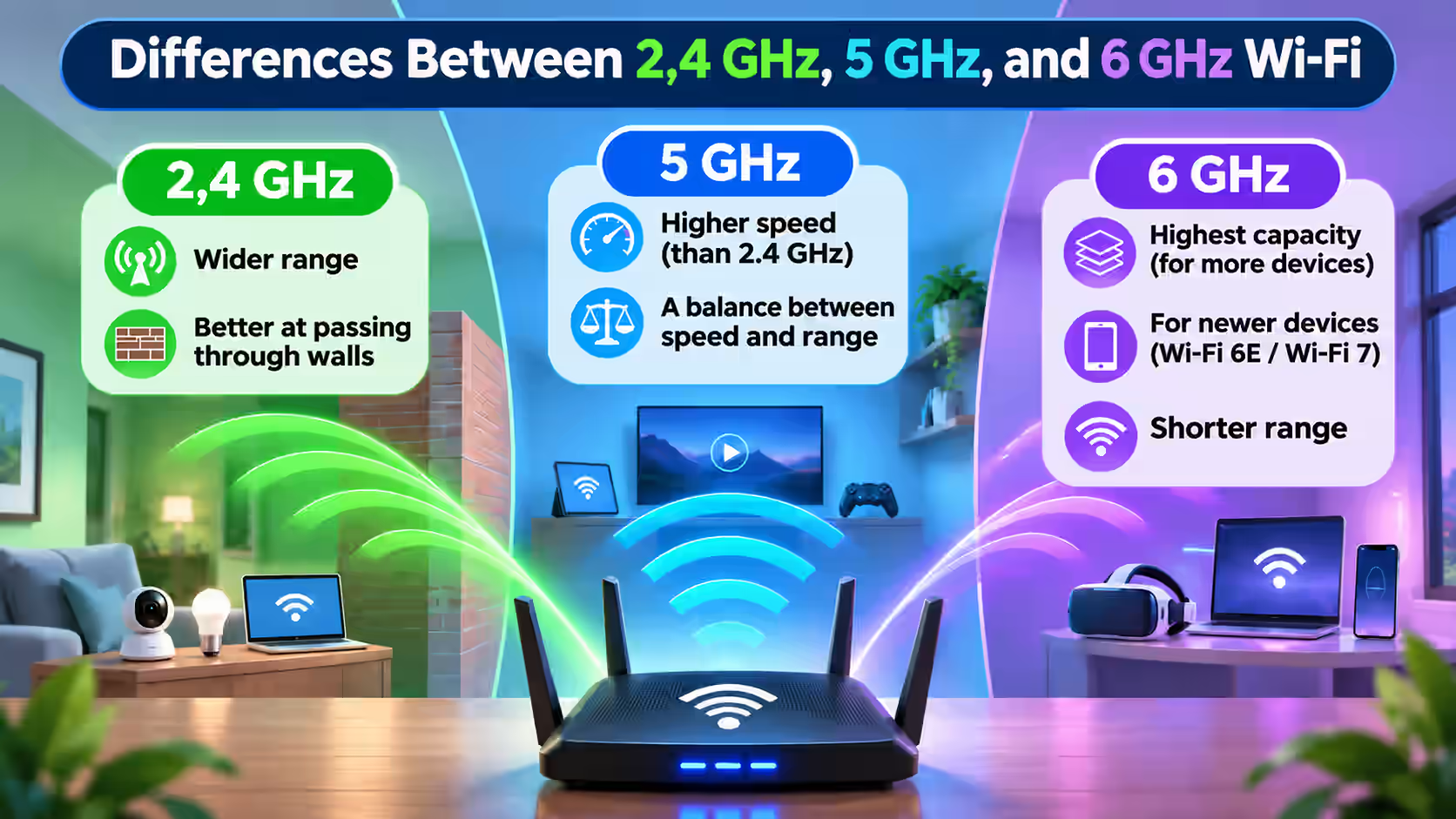
The differences between the 2.4 GHz, 5 GHz, and 6 GHz Wi-Fi bands become most noticeable when you move between rooms or connect several devices at once. The 2.4 GHz band generally reaches farther, while 5 GHz offers greater capacity. The 6 GHz band provides more room for wide channels, provided both your router and your device support it.
If your living room router delivers a fast connection nearby but the internet slows down in your bedroom, choosing the right Wi-Fi band may help. A higher frequency, however, does not automatically mean a faster internet connection.
What are Wi-Fi bands?
GHz, short for gigahertz, is a unit of frequency. One gigahertz equals one billion hertz. In Wi-Fi networking, 2.4 GHz, 5 GHz, and 6 GHz refer to groups of radio frequencies used to send data between a router and devices such as phones and laptops.
Each of these Wi-Fi bands contains several channels. Routers and connected devices communicate over these channels. Channel width, usually expressed in MHz, affects how much data can be transmitted. A wider channel can carry more data when signal quality and network conditions allow it.
Wi-Fi frequencies should not be confused with 4G and 5G mobile networks. A home network name ending in 5G usually refers to 5 GHz Wi-Fi rather than fifth-generation cellular service.
Comparing 2.4 GHz, 5 GHz, and 6 GHz Wi-Fi bands
| Wi-Fi band | Main characteristics |
|---|---|
| 2.4 GHz | Generally longer range, fewer channels, and more potential congestion. |
| 5 GHz | Generally greater capacity, suitable for devices receiving a strong enough signal. |
| 6 GHz | More options for wide channels, without legacy Wi-Fi devices operating on this band. Requires compatible hardware. |
2.4 GHz Wi-Fi: useful for devices farther from the router
Of the three Wi-Fi bands, 2.4 GHz generally reaches rooms separated by walls more easily. This makes it useful for security cameras, sensors, smart lights, and other devices that need a reliable connection but do not transfer large amounts of data.
The downside is that many other wireless networks and technologies, including Bluetooth, share the same band. In a densely populated neighborhood, several nearby routers may use the same channel. Appliances such as microwave ovens can also cause interference while running. Even a strong signal may perform poorly when the channel is busy.
5 GHz Wi-Fi: a practical choice for everyday use
The 5 GHz band has more room for channels than 2.4 GHz. Compatible devices can use that capacity for large downloads, video calls, streaming, and other demanding activities. TP-Link’s comparison of the two Wi-Fi bands explains their differences in range and common sources of interference.
A 5 GHz signal tends to weaken more when passing through obstacles. Some 5 GHz channels also use Dynamic Frequency Selection (DFS) to avoid interfering with radar systems. A router may switch channels when it detects radar activity, according to local regulations.
6 GHz Wi-Fi: extra capacity for newer devices
The 6 GHz band lets compatible devices use wide channels without sharing spectrum with older Wi-Fi equipment that only supports 2.4 GHz or 5 GHz. This can be useful when the other two Wi-Fi bands are congested by nearby networks. Other 6 GHz networks can still compete for the same channels, though.
Its range tends to be shorter than that of lower frequencies. In the same room as your router, 6 GHz can be a good choice for transferring large files over your local network. Behind several thick walls, it may perform worse than 5 GHz.
In Indonesia, Minister of Communication and Digital Affairs Decision No. 12 of 2025 specifies, among other provisions, the 5,925 to 6,425 MHz frequency range for radio local area networks subject to technical requirements. Channel availability varies by country, so check whether your hardware and firmware support 6 GHz operation in your region. Do not change your device’s region settings to unlock unauthorized channels.
Is Wi-Fi 6 the same as 6 GHz Wi-Fi?
No. Wi-Fi 6 is the name of a wireless networking generation based on the IEEE 802.11ax standard. The number six in its name does not mean that a device can use the 6 GHz band.
Standard Wi-Fi 6 operates on the 2.4 GHz and 5 GHz Wi-Fi bands. Wi-Fi 6E extends Wi-Fi 6 into the 6 GHz band. Wi-Fi 7 (802.11be) can also support 6 GHz, including channels up to 320 MHz where the equipment and local regulations allow them. Some Wi-Fi 7 products, however, only support two bands.
Check the supported Wi-Fi bands in the specifications rather than relying on the generation label. A Wi-Fi 6E or Wi-Fi 7 router that supports 6 GHz needs to be paired with a device that also supports that frequency. For a password-protected home network on 6 GHz, use WPA3-Personal. Intel’s wireless product documentation shows how band and channel width support varies between generations.
A dual-band router provides two bands. A tri-band router provides three, but it does not necessarily include 6 GHz: some models use one 2.4 GHz band and two 5 GHz radios. Always check the list of supported frequencies before buying.
Are higher-frequency Wi-Fi bands always faster?
The speed printed on a router’s specifications is not a guaranteed download speed. It may represent a theoretical connection rate or the combined capacity of several bands. A single device may not be able to use all that capacity at once.
Imagine you have an internet plan rated at 100 Mbps. Switching from the 5 GHz to the 6 GHz Wi-Fi band will not turn that plan into a 1 Gbps connection. A faster local connection can help you get closer to the speed of your internet plan, but downloads still depend on your internet service provider (ISP), the destination server, and other network conditions. If you are unsure about the units, read my guide to the difference between MB, Mbps, GB, and Gbps.
Copying files from your computer to a network storage device at home is a different matter. Local transfers do not need to pass through the internet, so the extra capacity can make a difference if your storage, router, and other hardware are not bottlenecks. Intel’s explanation of Wi-Fi bands covers the effects of channels, physical obstacles, and ISP limitations on speed.
Which Wi-Fi bands should you use?
For everyday devices that move around the house, I would start with 5 GHz if the signal is strong. In a bedroom farther from the router, compare it with 2.4 GHz. For newer devices close to the router, try 6 GHz if it is available.
If you play online games, pay attention to ping (latency), jitter (variation in latency), and packet loss, rather than looking only at download speed. Streaming video or downloading large files while playing can congest your connection. A strong signal on an uncrowded channel matters more than choosing the highest-frequency band.
For a PC or console that rarely moves, an Ethernet cable is worth considering first. A wired connection avoids radio interference between your device and the router. If you experience problems over Ethernet as well, check the router, cable, ISP, or game server before blaming Wi-Fi.
Router settings for a more stable connection
Enable all the Wi-Fi bands your router supports. You can use one network name (SSID) and let devices select an appropriate band. The router can encourage devices to switch bands through band steering, although the client device still plays a role in deciding which one to join, as explained in the Google Home guide to Wi-Fi bands.
Separate network names can be useful for testing or pairing smart home devices that have trouble connecting. For normal use, one SSID is generally more convenient. Apple also recommends a single SSID for compatibility with Wi-Fi 6E on supported devices.
Try a channel width of 20 MHz on 2.4 GHz. For the 5 GHz and 6 GHz Wi-Fi bands, automatic channel width is a good starting point. Leave channel selection on automatic if your router handles it well. These settings are consistent with Apple’s router configuration recommendations.
Place your router in an open area, as close as practical to the rooms where you use the network most. If coverage across multiple floors is the problem, a well-positioned access point or mesh system may make more sense than switching bands. Where possible, connect access points with Ethernet so the connection between them does not depend on an already weak wireless signal.
How to compare Wi-Fi bands at home
You do not need to buy a new router to find out which of the available Wi-Fi bands works best for you. Test with the same device for a fairer comparison.
- Check your current frequency in the Wi-Fi connection details or your router’s management interface.
- Run a speed test using the same destination server near the router, then repeat it in the room where you normally use your device.
- Test the other supported bands from the same location. Pause large downloads during the test and repeat each measurement several times.
- Compare speed, latency, and whether the connection drops frequently. If possible, test over Ethernet as a reference.
If your 6 GHz network does not appear, check router support, your wireless adapter, operating system, drivers, and security settings. For computers with Intel Wi-Fi 6E or Wi-Fi 7 adapters, Intel lists Windows 11 and compatible drivers among the requirements for 6 GHz operation, along with regional and hardware support.
The results will help you decide whether you need a router with 6 GHz support, a better position for your existing router, or simply a change to its settings. There is little reason to buy new hardware solely for a higher frequency if your current connection is stable and meets your needs.