

Wordtura Baca
Take Wordtura with you. Bookmark a review you want to revisit, or download a guide before you leave so you can read it when the signal drops.
How to install on this device
In Samsung Internet, tap the install icon in the address bar if it appears. You can also open the browser menu, choose Add page to, then Home screen.
Open this page in Safari. Tap Share, then Add to Home Screen. If you see Open as Web App, leave it on and tap Add.
Open the browser menu and choose Install app or Add to Home screen. Confirm, then open Wordtura from its icon.
In Chrome or Edge, look for the install icon in the address bar or the install option in the browser menu. In Safari on Mac, open File and choose Add to Dock if available.
Version 1.0.2 · Read the release notes
Two ways to save an article
Build your reading list
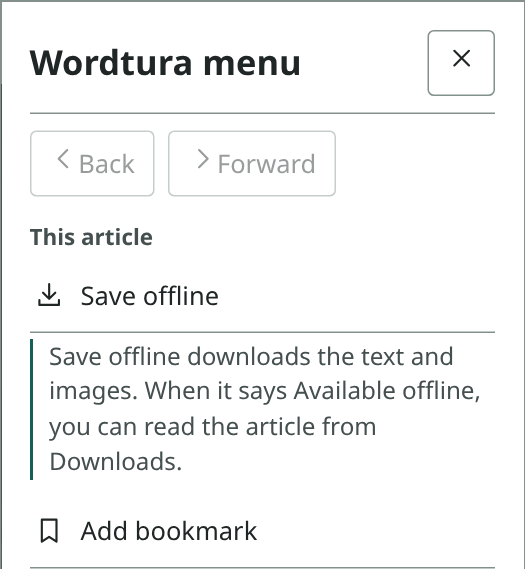
While reading, open Menu → Add bookmark. The article goes into Saved in the app. Browse by category, then choose a compact list or a grid with images. App bookmarks stay on your device, separate from your website bookmarks.
Download for offline reading
While you’re online, open an article and choose Menu → Save offline. Wait until you see Available offline. When you lose your connection, open Menu → Downloads to read the saved text and images.
Read at your own pace
Open Menu → Aa, reading settings to adjust the type size and line spacing. Jump to a section from the contents or search for a word in the article.