A storage drive can still appear in Windows even when it is starting to develop problems. Your PC might boot normally while an SSD or HDD is already reporting read errors or other warning signs. You can check SSD and HDD health without opening your PC using built-in Windows tools and the free CrystalDiskInfo application.
These checks can help you decide when to back up important files and whether a replacement drive is worth preparing. They cannot predict when an SSD or HDD will fail. Even a Good status does not guarantee protection against sudden hardware failure.
Why should you check SSD and HDD health?
An SSD stores data in flash memory. An HDD uses magnetic platters and mechanical components. Both can fail, but the warning signs and the information they report are not always the same. Check the condition of your SSD or HDD when opening files becomes unusually slow, the computer freezes during file operations, folders become unreadable, or a storage warning appears.
You may also want to check your SSD before transferring irreplaceable documents or when a device has been in service for years. A nearly full SSD, high operating hours, or an occasional slow PC does not automatically mean a drive has failed. Look at the reported health information alongside what happens during normal use.
Before checking: identify the physical drive
If the computer has several storage devices, note each model and capacity. Letters such as C: and D: represent volumes or partitions. They do not necessarily mean you have two separate physical drives. CrystalDiskInfo identifies an SSD or HDD by the underlying device, so select the correct model rather than relying on its drive letter alone.
The following steps read information; they do not require removing cables, opening the case, formatting disks, deleting partitions, or performing write-heavy tests. If your SSD or HDD already struggles to read files and you do not have a backup, protect the most important files before experimenting with more diagnostics.
Check drive health with Windows built-in tools
Check an NVMe SSD in Windows 11 Settings
- Open Start > Settings, or press Windows + I.
- Select System > Storage > Advanced storage settings > Disks & volumes. The wording can vary with the Windows display language.
- Choose the physical disk you want to examine, then open its Properties.
- If your SSD and its controller are supported, check the fields for Estimated remaining life, Available spare, Temperature, and any critical warnings.
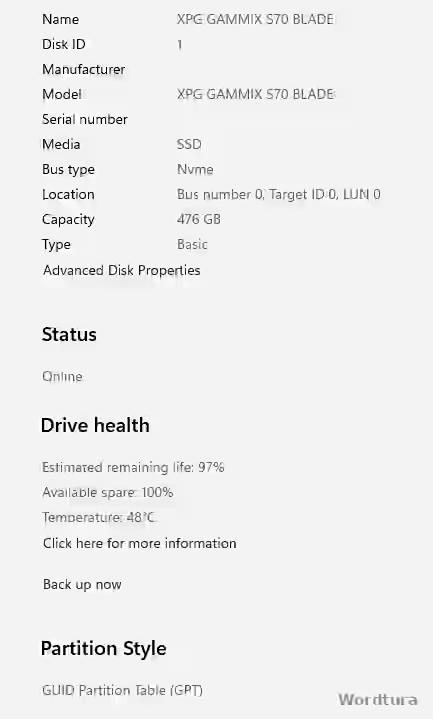
In this screenshot, an XPG GAMMIX S70 BLADE NVMe SSD reports Estimated remaining life of 97%, Available spare of 100%, and a temperature of 48°C. That 97% figure is a manufacturer-derived estimate of remaining life, not a 97% chance that the SSD will never fail. Temperature also changes with load and cooling.
Microsoft explains this interface in its official storage device warning guide. Its built-in health monitoring primarily covers NVMe SSDs. Windows does not provide equivalent SSD health details for SATA SSDs or HDDs through this page. If the health fields are missing, you cannot conclude that the drive is healthy or damaged.
What if you use Windows 10?
On Windows 10 versions that include a disk management page, you may find it under Settings > System > Storage > Manage disks and volumes. Select the disk and look at its properties. Availability and layout depend on the Windows version. For an HDD or SATA SSD, CrystalDiskInfo is often more useful than relying only on this built-in page.
Get a basic status report with PowerShell
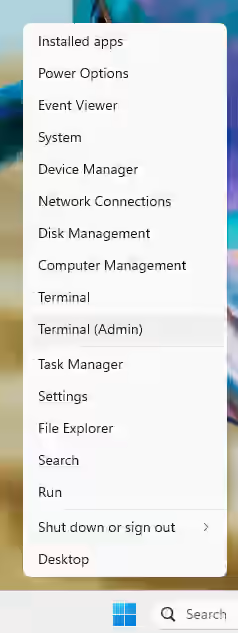
Windows PowerShell can display an overview of storage devices. Right-click Start, open Terminal or Windows PowerShell, and enter the following command:
Get-PhysicalDisk | Select-Object FriendlyName, MediaType, HealthStatus, OperationalStatus, Size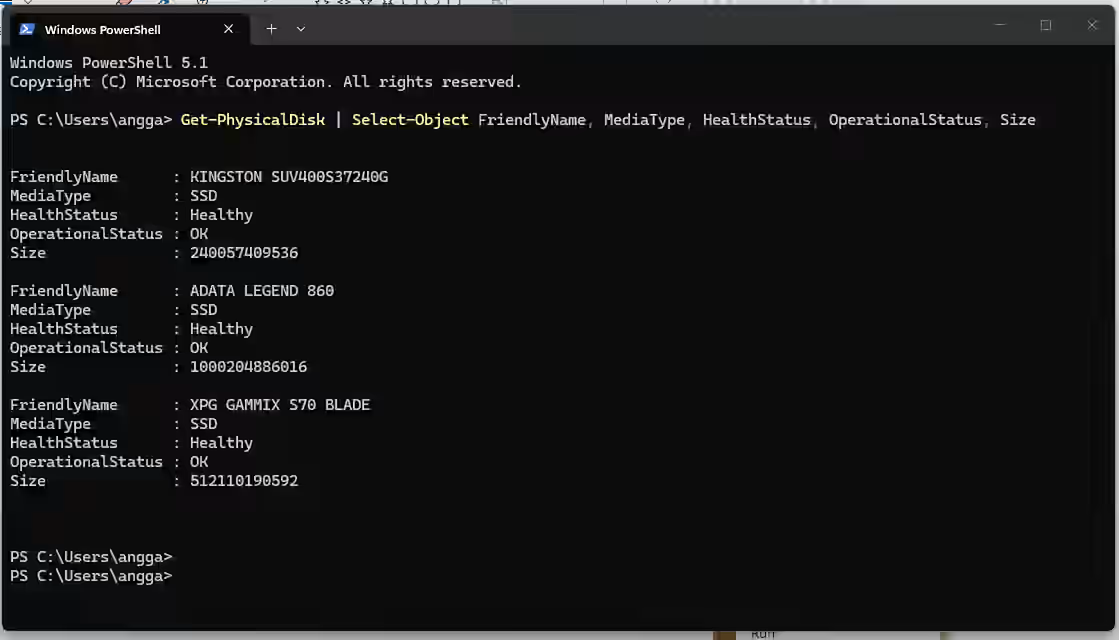
The example lists three SSD devices with HealthStatus set to Healthy and OperationalStatus set to OK. Windows is not reporting a problem through those summary fields. That is not the same as reviewing all SSD S.M.A.R.T. data, and it does not rule out a sudden failure.
The FriendlyName column helps identify the device. Windows may show Healthy, Warning, Unhealthy, or Unknown, depending on what the storage subsystem reports. USB adapters, some RAID configurations, and other controllers can limit the information available. See Microsoft’s Get-PhysicalDisk documentation for details.
The chkdsk utility serves a different purpose. It primarily checks file-system and volume errors, not the physical condition of an SSD or HDD. Do not rush into intensive scans or repairs on a suspect drive before your important data is safe.
Download and install CrystalDiskInfo from the official website
Choose the correct download
- Visit the developer’s official Crystal Dew World download page.
- Find CrystalDiskInfo, not CrystalDiskMark. CrystalDiskInfo reports drive health information, whereas CrystalDiskMark measures performance.
- Choose Standard Edition. Select Installer for normal setup or ZIP to use an extracted, portable copy.
- Follow the links provided by the developer. Avoid misleading advertisement buttons and installers distributed by unknown sites.
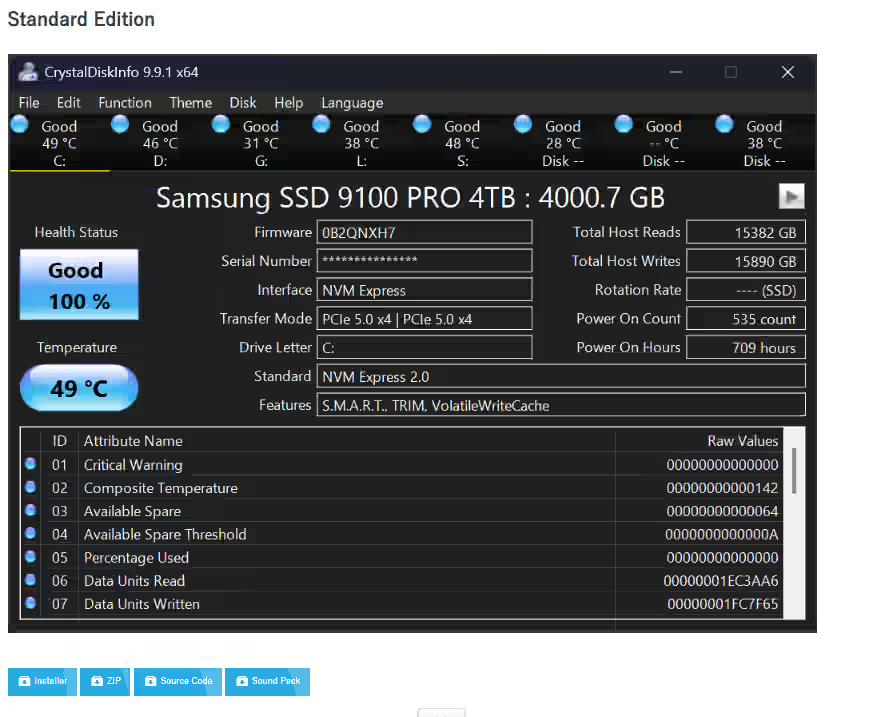
When the original guide was checked on November 13, 2026, the developer listed CrystalDiskInfo 9.9.4, released on November 3, 2026. Future updates may change the interface. You can consult the official release history when the menus or device compatibility differ from this guide.
Install and launch CrystalDiskInfo
- For the Installer edition, run the downloaded setup file and follow the instructions. Check the application name before approving Windows permission prompts.
- For the ZIP edition, extract the files to a folder and run the appropriate application executable. The ZIP edition does not require installation.
- Open CrystalDiskInfo and grant the required access if Windows asks for permission to read storage device information.
- Confirm that the displayed model and capacity match your SSD or HDD. If the computer has several drives, use the drive indicators along the top or the Disk menu to choose another device.
The developer has separate installation and removal instructions. CrystalDiskInfo works with many NVMe SSDs, SATA SSDs, and HDDs, but some USB enclosures, controllers, or models do not expose readable health data. A missing entry is not proof of a broken drive.
How to read CrystalDiskInfo results
Once you have selected the correct SSD or HDD, review the model and health information together. Do not base a decision solely on the color of the status box.
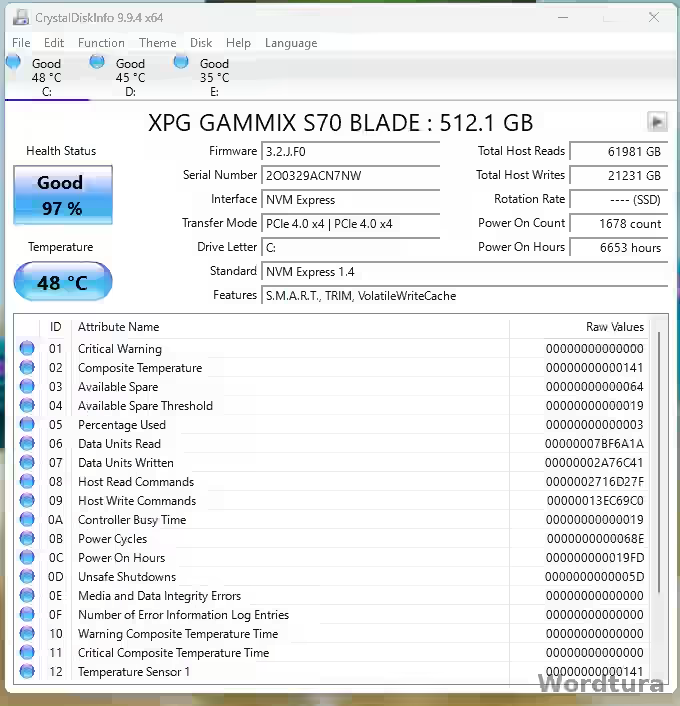
In the screenshot, the SSD reports Good 97%, a temperature of 48°C, Total Host Writes of 21,231 GB, and Power On Hours of 6,653 hours. Written data and usage hours do not by themselves determine whether this SSD is close to failure.
- Model and capacity: verify that the drive shown is the SSD or HDD you meant to check.
- Health Status: read Good, Caution, Bad, or Unknown. Certain SSD models display an estimated health percentage.
- Temperature: compare the reading with the operating range specified for that particular device.
- Power On Hours and Power On Count: note recorded operating time and power cycles, if provided.
- S.M.A.R.T. attributes: pay attention to the measurements relevant to the drive’s technology, and whether concerning values are changing.
What do Good, Caution, Bad, and Unknown mean?
- Good (usually blue): the readable data has not triggered the application’s warning conditions. An SSD or HDD can still fail unexpectedly.
- Caution (usually yellow): a condition has crossed a warning threshold, such as problematic sectors on an HDD or a wear estimate on certain SSDs. Check your backups promptly.
- Bad (usually red): the device or application is reporting a serious issue. Prioritize important files and plan for recovery or replacement.
- Unknown (usually gray): the application does not have enough information to judge the device. Do not interpret this as Good.
The developer explains in its Health Status documentation that HDD warnings can be related to attributes 05, C5, and C6. An SSD may be evaluated using estimated remaining life or manufacturer-defined thresholds. The same status color can therefore be based on different measurements.
If the drive is missing or reports Unknown
CrystalDiskInfo cannot read health data from every storage device. Some USB adapters and RAID controllers block access to S.M.A.R.T. information. If your SSD or HDD does not appear, or its status is Unknown, try the following safe checks.
- Press Windows + X and open Disk Management to check whether Windows detects the physical drive. Do not click Initialize Disk, create a new partition, or format a device that may still contain important files.
- If Windows detects the device but CrystalDiskInfo does not, compare the model, connection method, and adapter compatibility with the manufacturer’s documentation. A newer CrystalDiskInfo release may support more hardware.
- If the SSD or HDD repeatedly disconnects, fails to appear in Windows, or produces read errors, avoid repeated stressful tests. Rely on existing backups or consider professional assistance when important data is at risk.
An Unknown label tells you that the application cannot determine the drive’s condition. It does not establish that the drive has failed.
Understanding S.M.A.R.T. readings
S.M.A.R.T. stands for Self-Monitoring, Analysis and Reporting Technology. These are diagnostics that the drive reports about itself. Attribute names, scales, and thresholds can vary between an HDD, SATA SSD, and NVMe SSD, as well as between manufacturers and firmware versions. The Current, Worst, Threshold, and Raw Values fields should not be compared blindly across different drives.
HDD: watch sector and read-error indicators
- 05 Reallocated Sectors Count: sectors that have been remapped to spare locations. A value that appears or continues to increase deserves attention.
- C5 Current Pending Sector Count: sectors waiting for another read or further handling after a read problem. A nonzero value is worth investigating after data is protected.
- C6 Uncorrectable Sector Count: errors or sectors that could not be corrected. Continued increases can point to a growing data risk.
- C7 UltraDMA CRC Error Count: sometimes indicates a SATA communication or connection problem rather than damage to the disk surface.
Raw S.M.A.R.T. values may be shown in hexadecimal or decimal, and some manufacturers encode them differently. A large raw number does not automatically mean a worse drive. Before performing more diagnostics on a suspect HDD, make a backup. Changing CrystalDiskInfo warning thresholds does not repair a physical problem.
SATA SSD: remaining life and manufacturer-specific attributes
A SATA SSD has no mechanical disk platters. Its wear measurements may include Remaining Life, Media Wearout Indicator, a percentage used, spare-block information, or lifetime data writes. Their names and scales vary by manufacturer. An SSD health percentage on one brand should not be compared directly with the percentage from another brand.
CrystalDiskInfo may show a health percentage for one SATA SSD and a different set of readings for another. If a result looks unusual, use the official documentation for that exact SSD model and firmware rather than assuming all SSD attributes have a standard meaning.
NVMe SSD: Percentage Used, available spare, and media errors
NVMe SSDs generally expose a more standardized health log. Important fields include Percentage Used, Available Spare, Critical Warning, Data Units Written, Power On Hours, Unsafe Shutdowns, and Media and Data Integrity Errors. The NVMe Percentage Used value estimates consumed endurance according to the manufacturer. It is not the amount of storage space occupied by files, can exceed 100%, and cannot tell you the precise day an SSD will fail.
Likewise, an application’s Health 100% label may represent estimated remaining life. Do not confuse Percentage Used 10% with Health 10%. Microsoft documents these fields in the NVMe Health Information Log.
Temperature, total writes, and operating hours
- Temperature: the current temperature reported by the SSD or HDD. Persistent excessive heat or an official thermal warning needs attention. There is no universal safe temperature limit across all drive models.
- Total Host Writes or Data Units Written: the amount of data reported as written to the SSD. It is not remaining free space or, by itself, proof that endurance has been exhausted. Compare it with the model’s published write endurance if available.
- Power On Hours: total time reported as powered on. Many hours indicate use, not necessarily SSD or HDD failure.
- Power On Count or Power Cycles: the number of recorded power-on events. Interpret it in the context of the device.
- Unsafe Shutdowns: on NVMe devices that report this field, the number of shutdowns that did not follow the expected process. Do not judge the whole SSD from this figure alone.
Signs your SSD or HDD may be having problems
Consider how the drive behaves alongside what the software reports. Watch for recurring symptoms such as:
- Files that once opened correctly now fail to open, become corrupted, or trigger I/O errors.
- Windows regularly freezing when you open or copy files from one particular drive, or unexplained slow reads.
- An SSD or HDD disappearing, disconnecting, or sometimes failing to be detected when the PC starts.
- Abnormal clicking or grinding noises from an HDD. This mechanical symptom does not apply to an SSD.
- Warnings about drive health, increasing media errors, problematic sectors, or an SSD switching into a read-only state.
Similar problems can also be caused by a cable, adapter, driver, power supply, or operating-system issue. One symptom alone does not prove physical failure. If the files are valuable, however, protect them while you investigate.
What should you do if the results look bad?
If the drive still shows Good
Keep a backup on another physical drive or a reliable backup service, and periodically confirm that the copied files open. Check the SSD or HDD again if the symptoms change. The Good label is not a reason to keep the only copy of an important file in one place.
If the drive shows Caution or the attributes worsen
- Back up important data first. Copy your most valuable files to another device and confirm that the copies are readable.
- Record the model, status, and warning attributes. Once your files are safe, compare future readings if doing so will not worsen the situation.
- Consult the manufacturer’s guidance and prepare a replacement if the warning persists or the readings continue to deteriorate.
If the drive shows Bad, disconnects, or makes abnormal noises
Reduce normal use of the affected SSD or HDD. Avoid heavy benchmarks, full-disk write tests, formatting, initialization, or repair commands that can modify data before deciding how to recover it. If the device remains readable without severe mechanical symptoms, copy the most important files carefully. When the drive repeatedly disconnects, an HDD makes unusual noises, or there is irreplaceable data with no backup, a professional data recovery service may be the safer option.
The CrystalDiskInfo developer also emphasizes backing up data before further investigation in its official advice for Caution and Bad. Lowering the warning sensitivity until the application shows Good does not fix the SSD or HDD.
When should you back up files or replace a drive?
Maintain backups before your SSD or HDD shows any problem. Back up often enough for the importance and frequency of changes to your files, as well as before system migrations, firmware updates, or other risky maintenance. A different partition on the same drive is not an independent backup. Keep a copy on another device or in another location.
Consider replacing the drive when CrystalDiskInfo shows Bad, sector or media error counts keep increasing, an SSD enters read-only mode, the drive regularly disappears, or file access errors interrupt your work. Persistent Caution is also a reason to prepare for replacement, especially if your data would be difficult to recover.
An SSD or HDD health percentage should not be confused with a laptop battery’s health percentage. The parts wear differently and require separate checks. If you want advice about the battery, see Wordtura’s guide to charging a laptop safely.
If you cannot interpret a reading, note the exact device model and the relevant S.M.A.R.T. fields, then compare them with the manufacturer’s documentation. Base your decision on real symptoms, changes over time, and the backups you have, not just one color or percentage.